How does ProLister work?
ProLister is Tradera's own free publishing tool. The tool is recommended for everyone who wants to streamline their work when listing multiple adverts.
Log in with your usual Tradera credentials, and you're ready to get started!
Getting started
If you have a Tradera account, you also have access to our selling tool ProLister. You log in with the same credentials as on Tradera, and it is completely free.
ProLister is a web service, so you don't need to install any software to get started.
1. Log in
2. Click "New folder" in the top left of the header or on the start screen
An empty folder will be created where you can start creating drafts.
Tip! We recommend creating a new folder for each "batch" of new adverts you want to publish, rather than always working in the same one. This makes it easier to get an overview of what has been published and what hasn't.
The sales overview has 3 tabs: Active adverts, Sold and Unsold. You can perform different actions depending on the advert's status – do this by right-clicking or clicking the 3 dots on the far left. Active adverts You can edit and cancel adverts.
Sold You can see payment status and access shipping booking, order information and leave feedback.
Unsold You can restart adverts that were not sold. You can edit adverts before restarting them, but only one at a time. When restarting multiple adverts, editing is not possible. You can also schedule and choose intervals for your unsold items.
Your active listings can be found under the "Active" tab in ProLister. They appear there automatically.
You can export copies of drafts from Sello, but the file needs to be converted to CSV format before it can be uploaded to ProLister.
Guide to exporting drafts from Sello
1. Make sure all the columns you want to export are visible in Sello under "Select columns" 2. Select the items you want to export in the Inventory list in Sello
3. Then click "Manage" and select "Export to Excel"
4. Open the file on your computer and select File > Export to > CSV
5. Open ProLister and click Import in the left menu. Select the CSV you just created.
6. Now select which columns should be mapped to which.
7. Then click the "Import" button and the drafts will appear in ProLister.
Not all columns can be mapped to ProLister as some information is stored locally or formatted in Sello. You can use the autofill function (the magic wand) to help fill in the listings. You can also quickly edit prices etc. directly in the cell.
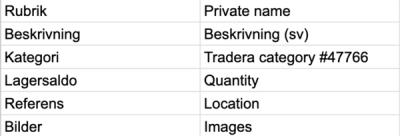
Managing active and unsold listings from Sello in ProLister
All published listings can be found in ProLister under Inventory → Active or Inventory → Unsold. Currently you can edit one active listing at a time. Unsold listings can be edited one at a time before restarting. You can however restart all of them at once. We are planning to build support for
- editing multiple active listings at once
- editing multiple unsold listings at once before restarting
- converting published listings to drafts in ProLister
Guides
Click the green "Publish" button in the folder when you have finished all your adverts. A window will open where you can set the date and time for the list to start publishing, as well as how many minutes you want to set as the interval between the start times of all adverts. When you set an interval for the start time, the end time is also affected – this can be useful if you are selling several items and want to ensure that buyers have time to purchase more than one.
1. Hover the mouse between two columns in your folder until you see the cursor change to a hand
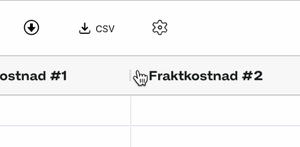
2. Click and hold the mouse button and slowly drag the column to the left or right
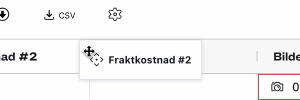
3. Release at the desired position. The order is saved in the browser across all folders.
There are two ways to change the upload order of adverts in a folder. The easiest way is to select the advert(s) you want to move, then hold the mouse button down on the icon on the far left – this activates drag n'drop. You can also select and then click Move one step up/down from the toolbar menu or right-click.
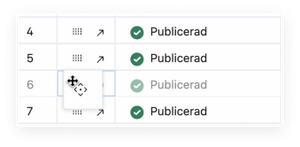
1. Select the adverts you want to edit (by holding Shift or Option whilst clicking)
2. Click "Edit" at the top of the toolbar
3. Change everything you want to apply to the adverts
Done!
Move adverts from one folder to another
On MAC: Cmd + X to cut and Cmd + V to paste
On PC: Use Ctrl + X to cut and Ctrl + V to paste
The adverts are not cut/removed from their original folder until you have pasted them into another list.
Copy adverts
Select the advert(s) you want to copy
On MAC: Cmd + C
On PC: Ctrl + C
Open the folder you want to copy the adverts to
Click anywhere inside the list (for example at the bottom)
On MAC: Cmd + V
On PC: Ctrl + V
If you have a registered shop on Tradera, the advert type in ProLister can be changed from auction or buy now to shop listing. What you need to bear in mind is to ensure that VAT is correct and that the stock level matches the quantity of items you are selling.